Audit Logs
Audit Logs create a detailed audit trail that enables financial institutions to trace the history of transactions and activities. This audit trail is essential for investigating discrepancies, resolving disputes, and ensuring transparency and accountability in financial operations.
Note: Only users with the required permission can view the Audit Logs. If your account is enabled for Audit Logs, you can assign access to user profiles on the page in the category. For more information, see Creating or editing a user profile.
The Audit Logs include the timestamp, module, user name, type of action performed, and details about the changes related to the following:
- User: Activities related to user creation, approval, updates, deletion, emails sent, and user profile updates including assigning a new user profile or updating an existing profile. For more information, see Creating or editing a user profile.
-
User limits: Additions or changes to the Per-trade Entry Limit, Daily Trade Limits, and Daily Limit Override values on the User Information Trade Limits tab. For more information, see Setting trade limits for a user.
-
Login: Activities related to SSO and interactive login, forgetting, resetting, or changing a password. For more information, see Resetting your password.
- Beneficiary: Activities related to beneficiary creation, approval, decline, update, or deletion. For more information, see Working with beneficiaries.
-
Remitter: Activities related to remitter addition, update, or deletion. For more information, see Remitters.
-
Payments:
-
Activities related to payments created through Make Payments, including create, approve, decline, update, delete, and book. For more information, see Making a Payment.
-
Activities related to payments created through File Upload, including payments booked, withdrawn (update), approved, declined, and reconciliation file download. For more information, see Upload Center
-
-
File Upload: Activities related to file upload, download, and removal of files (delete) from the File Upload Center page. SFTP file activities are also logged. For more information, see Upload Center .
-
Check Processing: Activities related to payments created through Check Processing, including create, update, and delete. For more information, see Check Processing
To view the audit logs, under the menu, click .
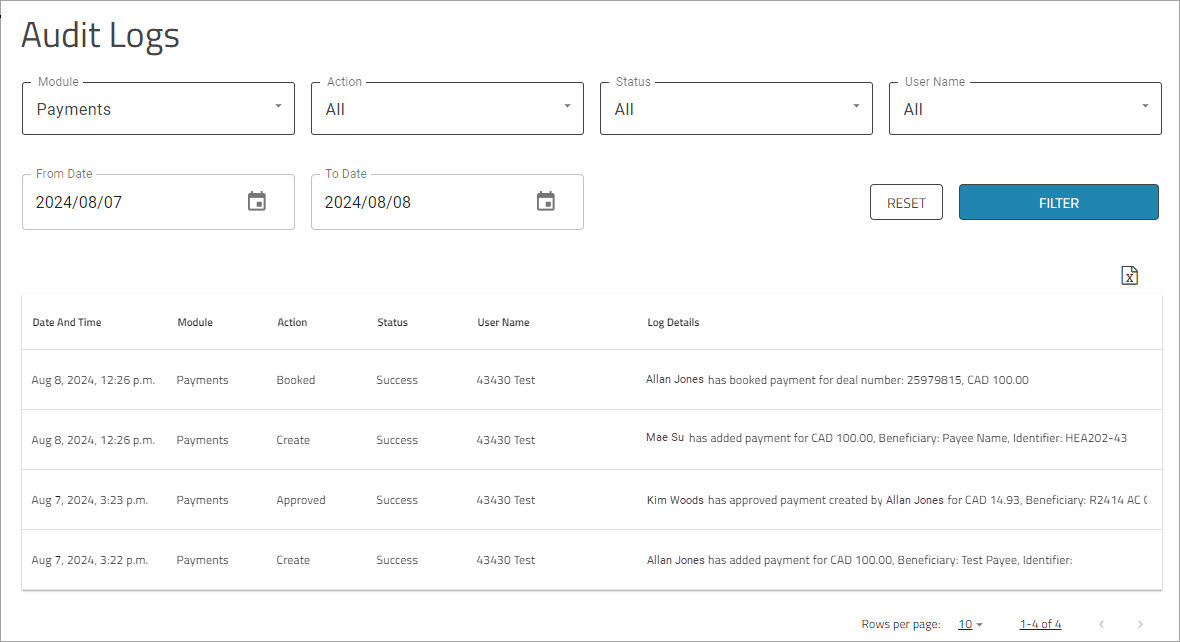
Audit Logs Filters
You can use the filters to refine the audit logs to display only those entries that meet specific criteria. The default is to show entries for all activities logged during the previous day and the current day.
Note: The filter is displayed only if your company has one or more divisions or affiliates.
To filter the Audit Logs
-
Click in the , , , or field and select an option from the dropdown list.
To set the date range, click the calendar icon in the and fields and select a date from the displayed calendar.
 -
Click .
The Audit Logs grid is updated with data that matches the selected filter criteria.
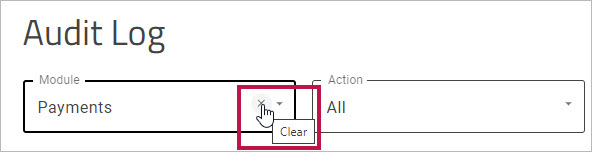
To reset an individual filter, click the in the filter selection box. The filter selection will be reset to .
To reset all filters, including the date range, click .
Exporting Audit Log Reports
To export the Audit Logs data in CSV file format, click the  icon just above the grid. The filename includes the date and time the file was generated, for example, .