Creating a user
If you are an Administrator, you can create new users so that individuals within your organization can log in. You can create as many users as you need to perform account activities.
To create a user
- In the toolbar, under , click .
- Click .
The page appears.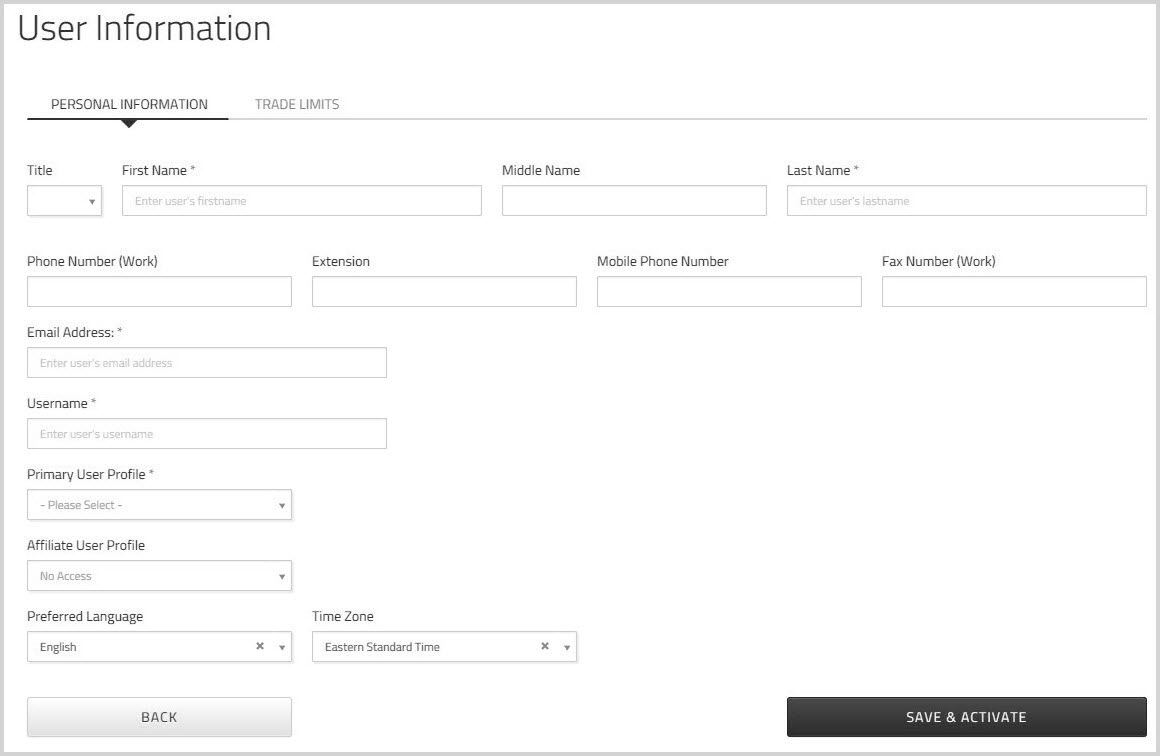
- Complete the fields on the tab.
Mandatory fields are marked with an asterisk; however, we recommend that you complete as many fields as possible.
Note: If your company has one or more affiliates (often referred to as child accounts), you will see a field called . This field allows you to select the user profile that applies when the user is operating on behalf of an affiliate.
After you select a profile from the dropdown list, you can click to see the permission settings for that profile.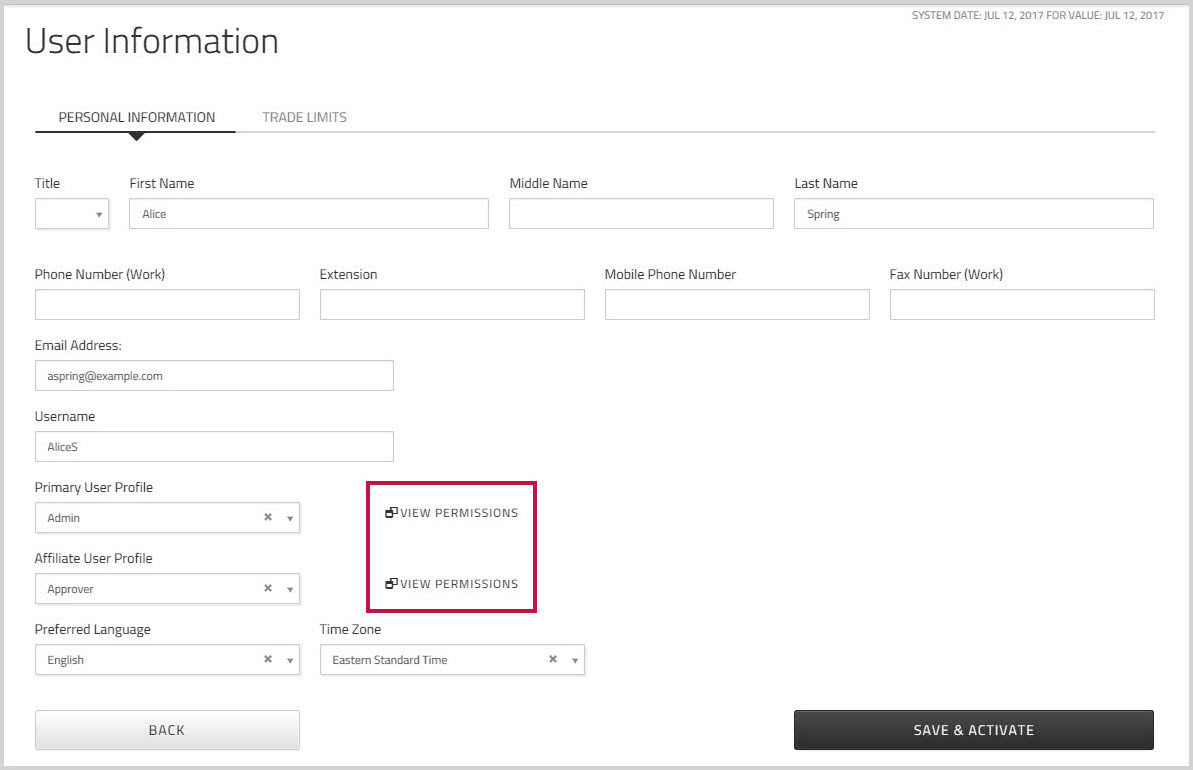
- Click to save the information and allow the user to log in.
A confirmation message appears at the top of the screen to let you know that the user was successfully created.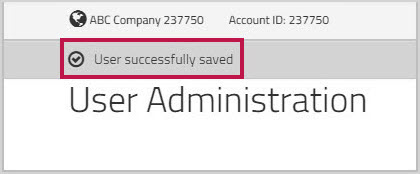
After you create the user, you can set trade limits to restrict the amount that the user can book. For more information, see Setting trade limits for a user.