Reviewing and Editing Check Payments
Before you book the order, you can review the details for each of the saved check payments, and make any required changes.
To review a check payment
-
On the page, click the tab.
Alternatively, on , under , click or .
-
Click the
 information icon that appear beside each payment on the page next to a payment, or click the name to view a summary of the information associated with that payment.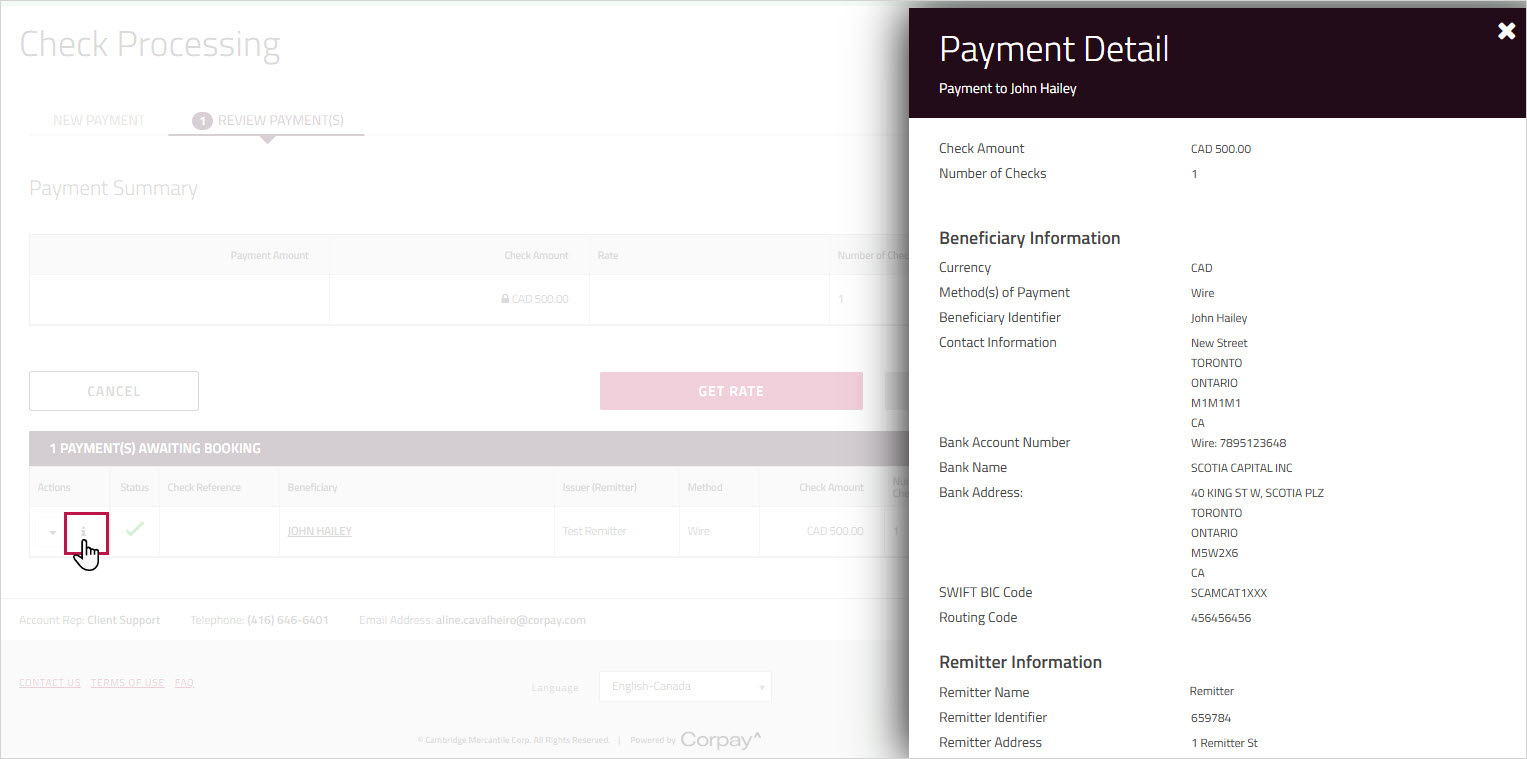
-
To close the summary view, click the X beside the window.
To edit a payment
-
On the page, click the tab.
-
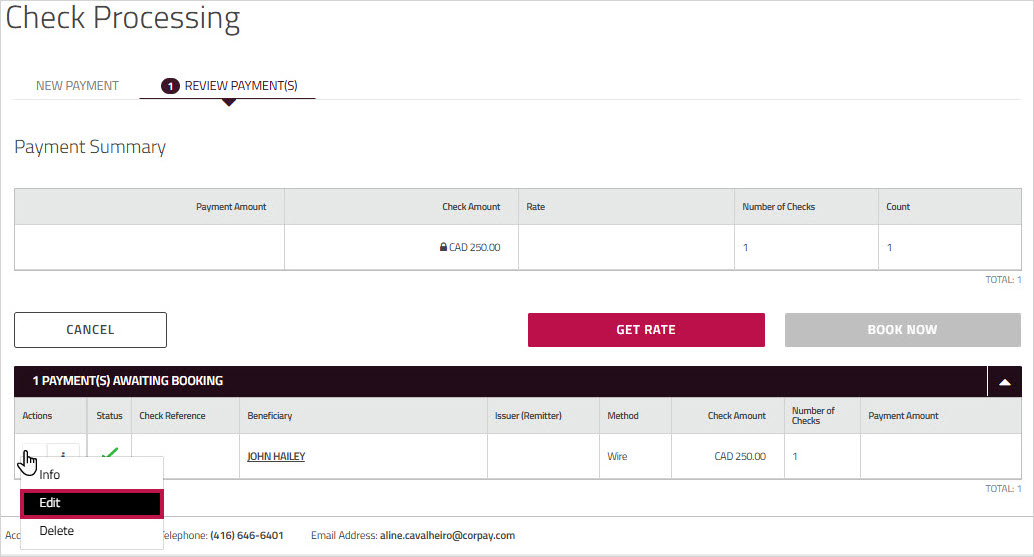
Choose from the dropdown list beside the payment you want to edit.
-
Make the required changes to any of the editable fields.
Note: The field may not be editable, if it contains information specific to the beneficiary.
-
When you finish editing the payment, click .
-
Proceed to the next step in the process, Booking the Check Deal.