Pending Payments
On the page you can view and manage payments that are currently in progress but not yet booked, including payments initiated by your affiliates. This page includes transactions from the workflow with statuses including , , , and . You can filter the page by or .
Note:
- The filter is displayed only if your company has one or more divisions and affiliates.
- Payments in the grid are listed from oldest to newest based on the payment creation date.
- If you have the required permissions you can or the payments.
- The menu options for editing affiliate payments are available only to users with affiliate access.
- This page is not enabled by default, please contact your account representative to enable it.
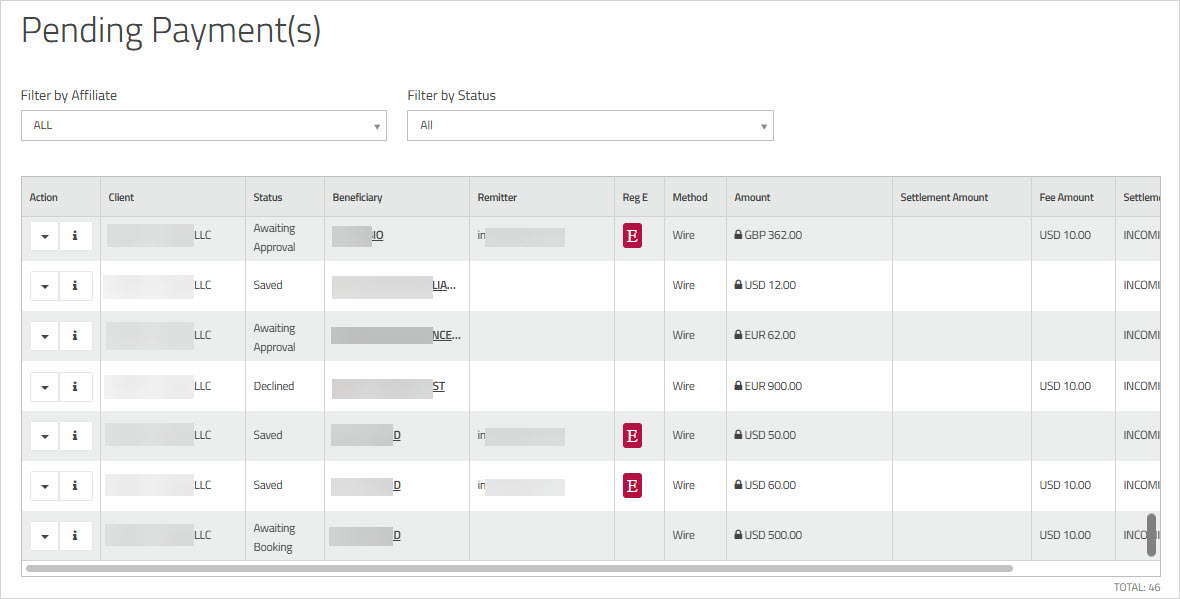
- Click the information icon
 next to a payment, or click the to view a summary of the information associated with that payment.
 - To edit a payment, choose from the dropdown menu. You will be redirected to the page. When you edit an affiliate payment, you act on behalf of the selected affiliate.The header displays the name of the child account under which you are currently operating. For more information, see Reviewing and Editing Payments.
- Editing a saved payment will also update the saved payments list of the user who originally created the payment.
- If you edit a payment that is , you cannot approve that payment.
- If you edit a or payment and the workflow includes approval, the payment status will change to .
Note: When a payment is edited while in status, or when its status changes to , the payment moves to the queue of the of the user who originally created the payment. The field is updated with the name of the user who last edited the payment. - You cannot edit a payment that has a compliance hit.
- To delete a payment, choose from the dropdown menu. For more information, see Deleting Payments.
- Deleting a payment will also remove it from the saved payments list of the user who originally created the payment.
- You cannot delete a payment that has a compliance hit.
- If applicable, you can click the icon
 to view the Pre-disclosure for the payment.
Note: This column is displayed only for Financial Institution (FI) clients enabled for Reg E.