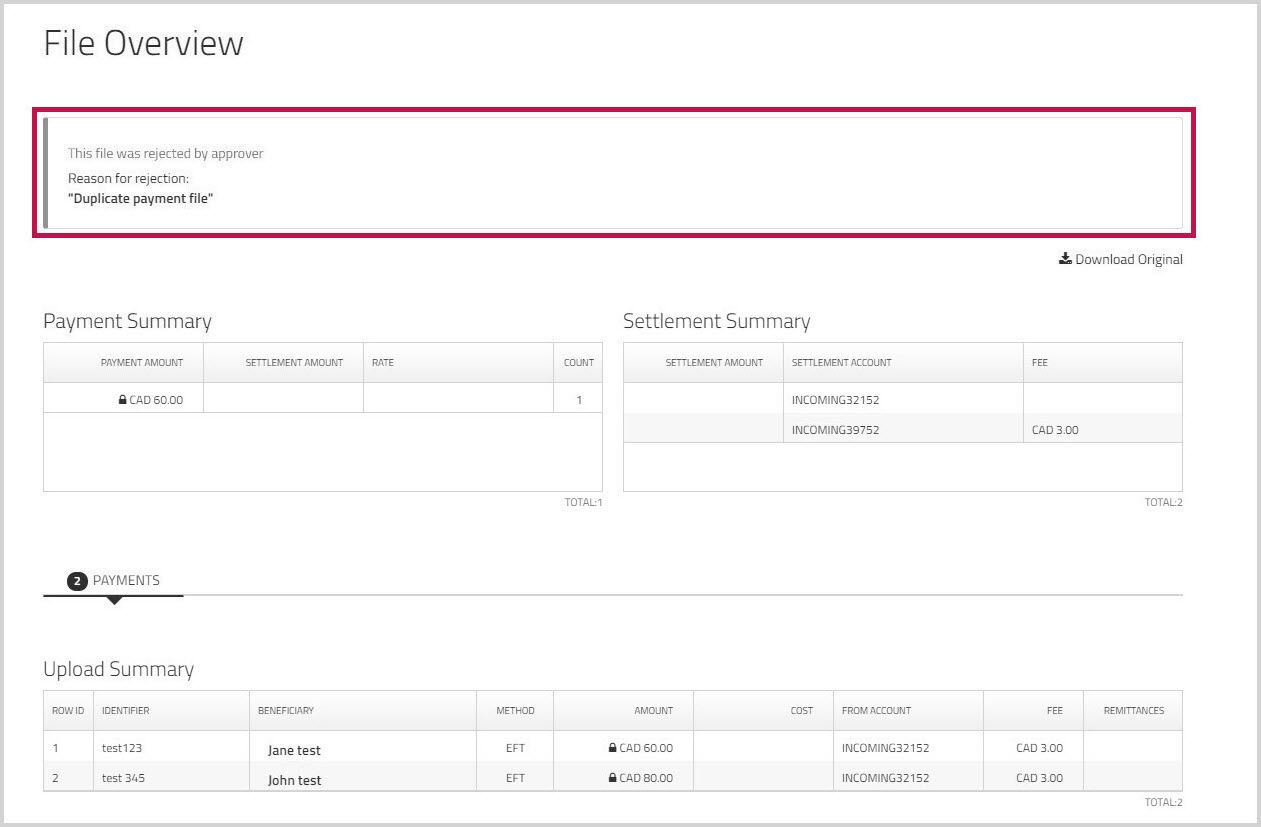
Rejecting payment files
To reject payment files
- On , under , click .
The window appears with a list of the payment files that must be approved before they can be processed. - Click to select the beside the payment file that you want to reject.
The is highlighted in red, and a confirmation dialog appears.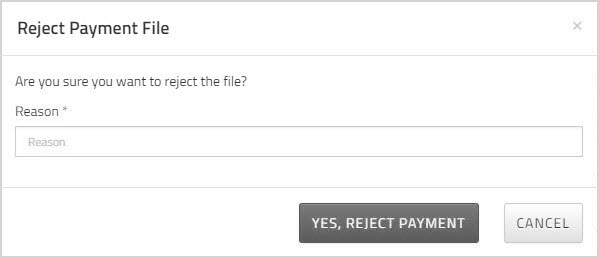
-
In the field, enter a reason
for the rejection.
Be as clear as you can so that the person who uploaded the payment file will know what to do to fix it. - Click .
- Repeat these steps to mark additional files for rejection.
- On the page, click .
- Optionally, on the page, click a file name to view details about that file.
The page opens.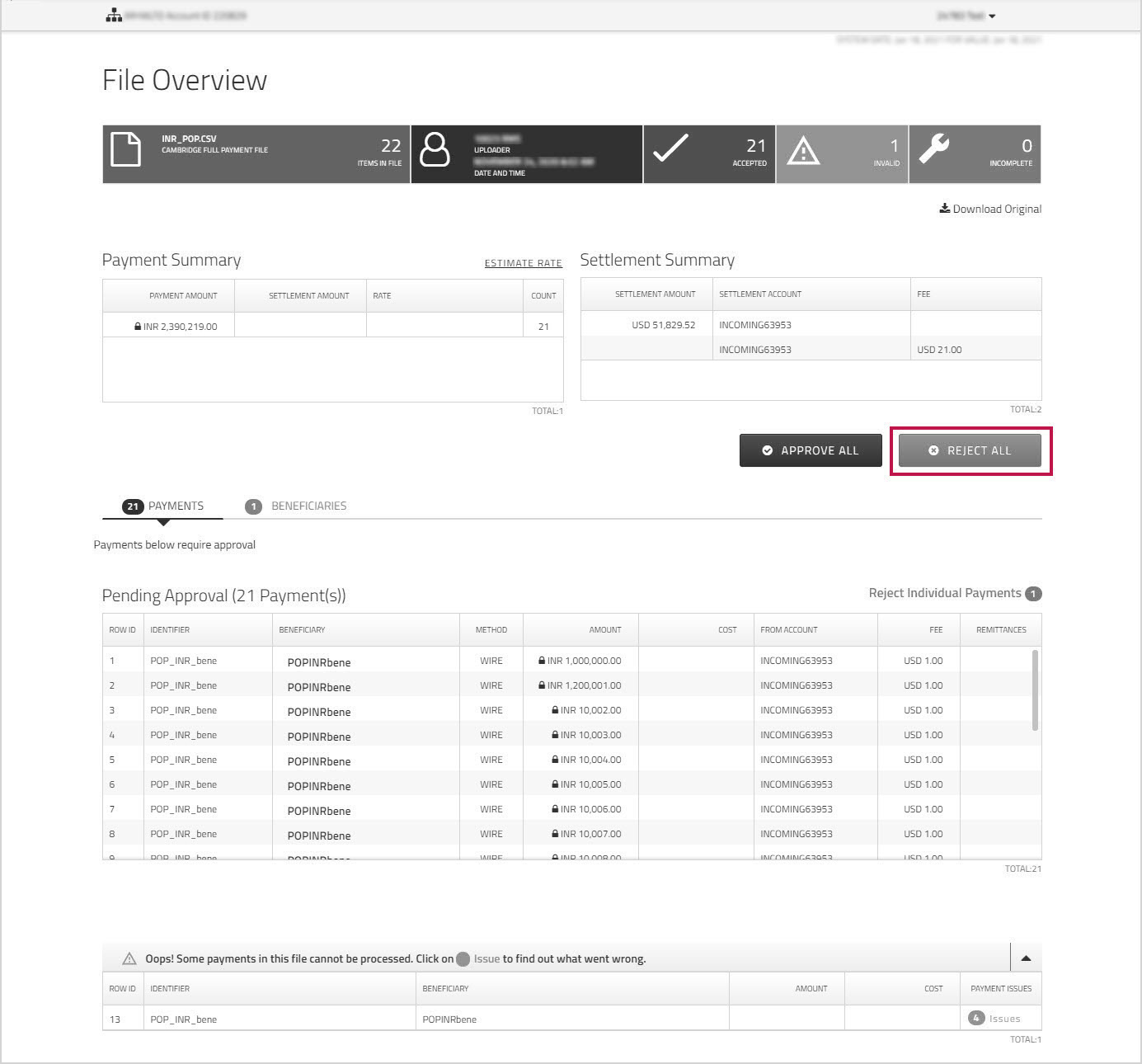
- Click if you want to reject all of the payments in the displayed file.
The dialog appears. - Enter a reason for the rejection, then click .
The page appears.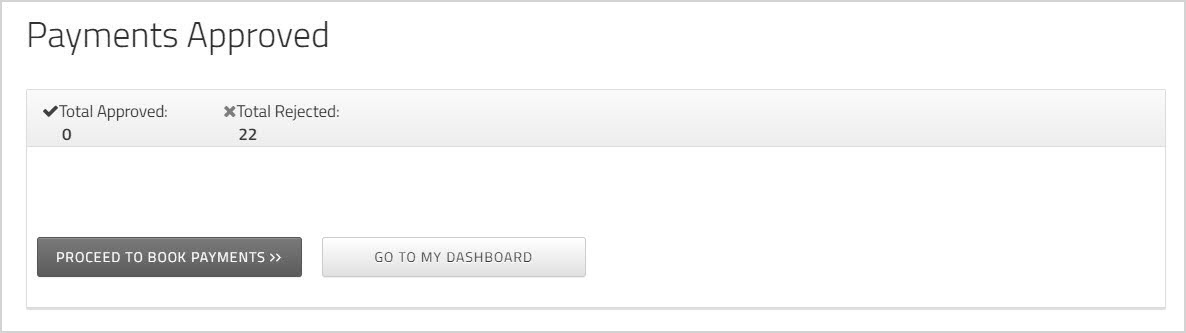
- Click to return to the or click to return to .
On the page, rejected files have a red in the Status column.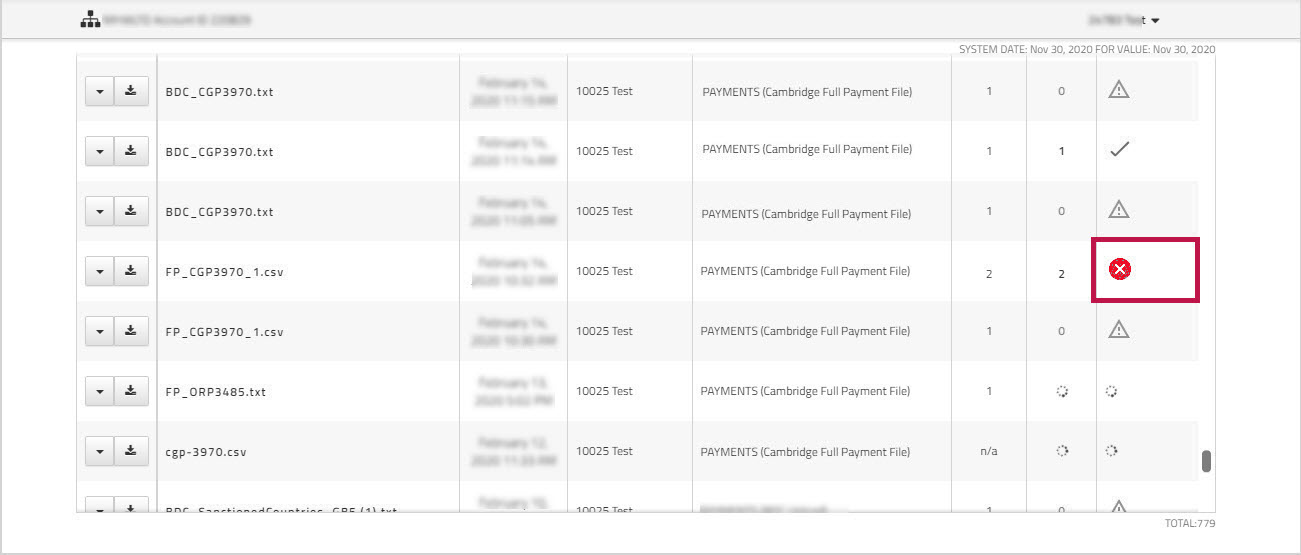
You can click the file name or the  rejected icon to view the file and see the reason that the payment file was rejected.